

Browser Extension
| Item | Details |
|---|---|
| Best for | Saving full web pages, selected content, and supported online videos from a desktop browser |
| Current limits | The extension cannot run on omnibox.pro or built-in browser pages; offline packages do not update automatically |
OmniBox's browser extension lets you save full web pages, selected regions, specific content, and online videos. It is also suitable for saving public content from platforms such as X (Twitter), Reddit, Instagram, Zhihu, Xiaohongshu, and Douyin.
Demo
Knowledge Base > Collect Web Content
Extension Installation & Download
Online Installation
Recommended - the extension will auto-update after installation
- Chrome Web Store: OmniBox - Chrome Web Store
- Edge Store: OmniBox - Microsoft Edge Extensions
- Firefox Extensions: OmniBox - Firefox Extensions
- Safari Extension (macOS): OmniBox for Safari - App Store
Offline Installation
Not recommended - the extension will not auto-update after installation
- Download the extension package: omnibox-chrome-v0.1.23.crx
- Copy
chrome://extensions/to your browser's address bar and open it
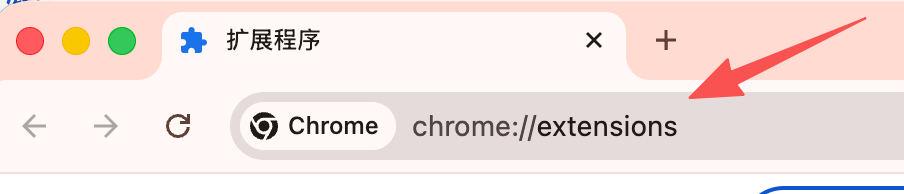
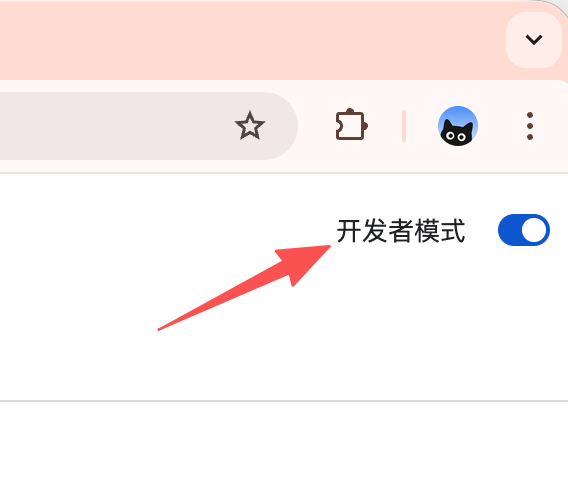
- Enable "Developer mode" on the extensions page
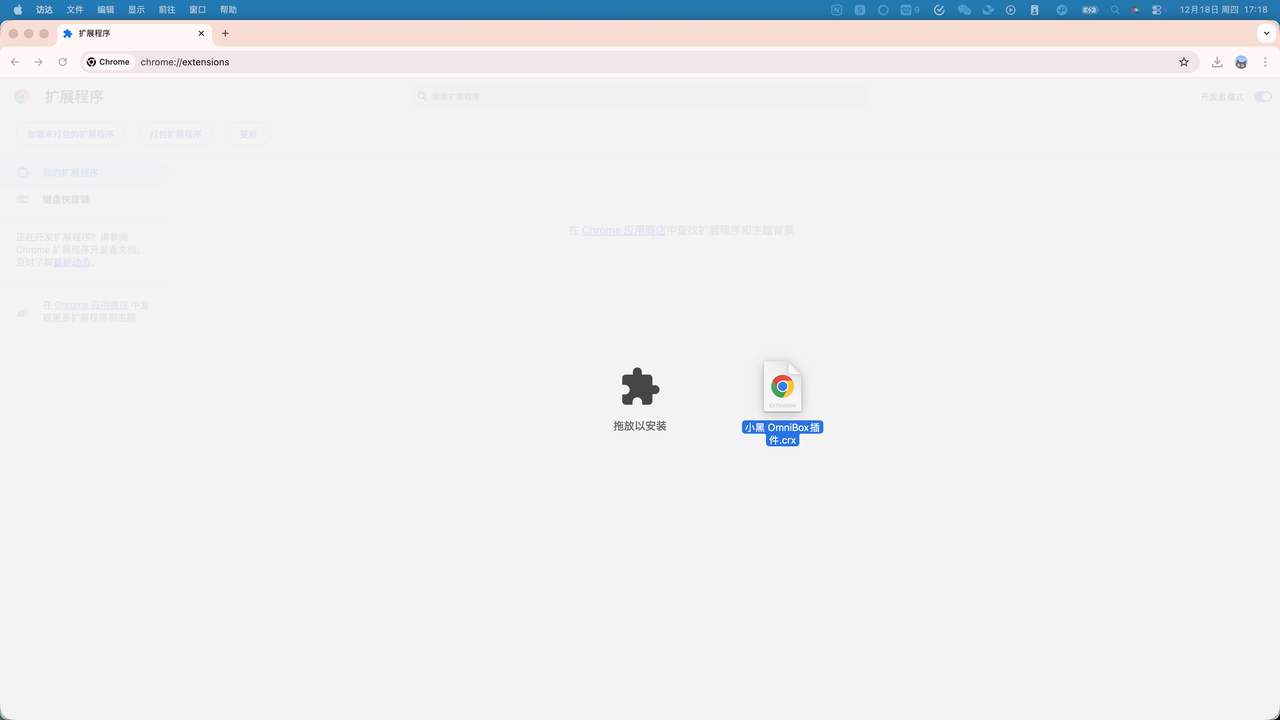
- Drag the downloaded
.crxfile into the extensions page to complete installation
Save Your First Webpage
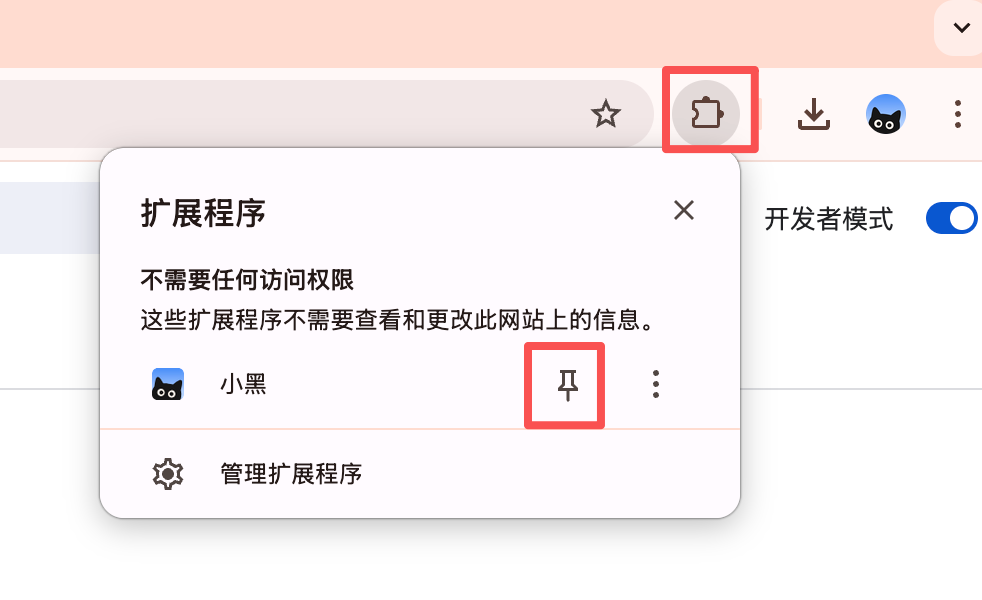
Pin to Toolbar
Click the extensions icon in your browser and pin OmniBox to your toolbar for easy access when saving web content
Login to Extension
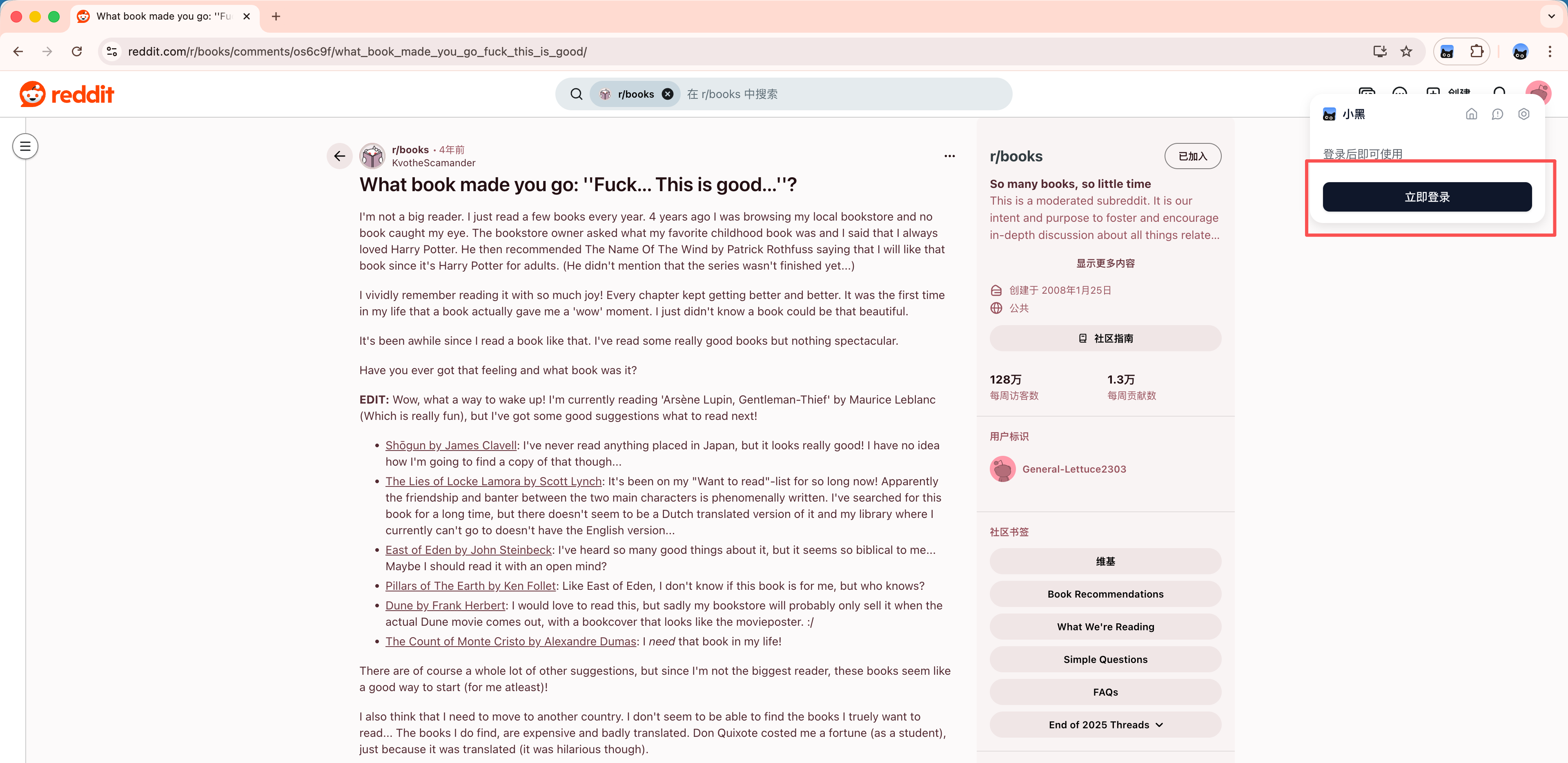
Before saving web content, you need to log in to your OmniBox account (supports Email, WeChat, Google, and Apple accounts)
Save Web Content
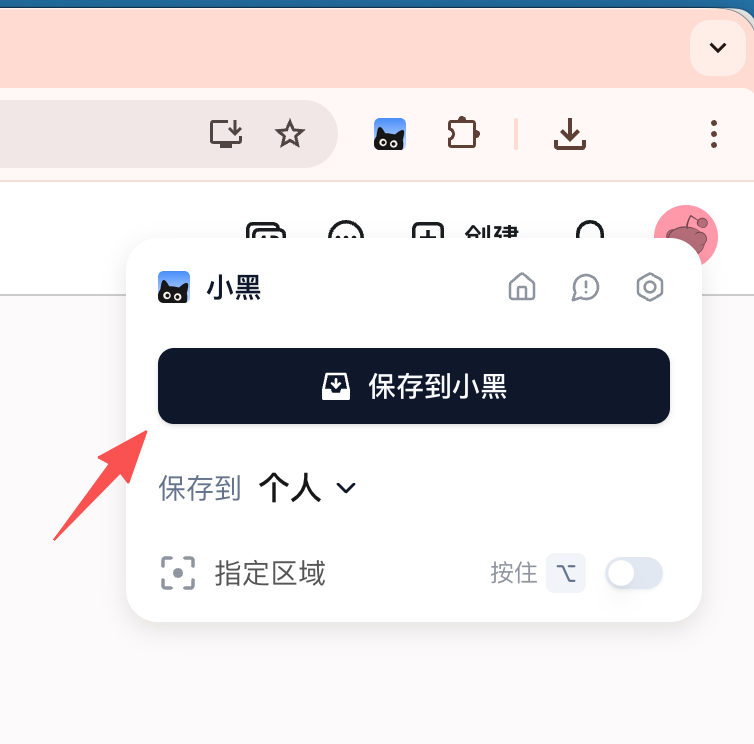
When you find a webpage you want to save, click Save to OmniBox, then go to your OmniBox namespace and wait a moment to view your saved content
Extension Shortcuts
Default Shortcuts
| Mac Shortcut | Windows Shortcut | |
|---|---|---|
| Save to OmniBox | ⌥ + S | Alt + S |
| Save Specific Region | ⌥ | Alt |
| Activate Extension | ⌥ + T | Alt + T |
Customized Shortcuts
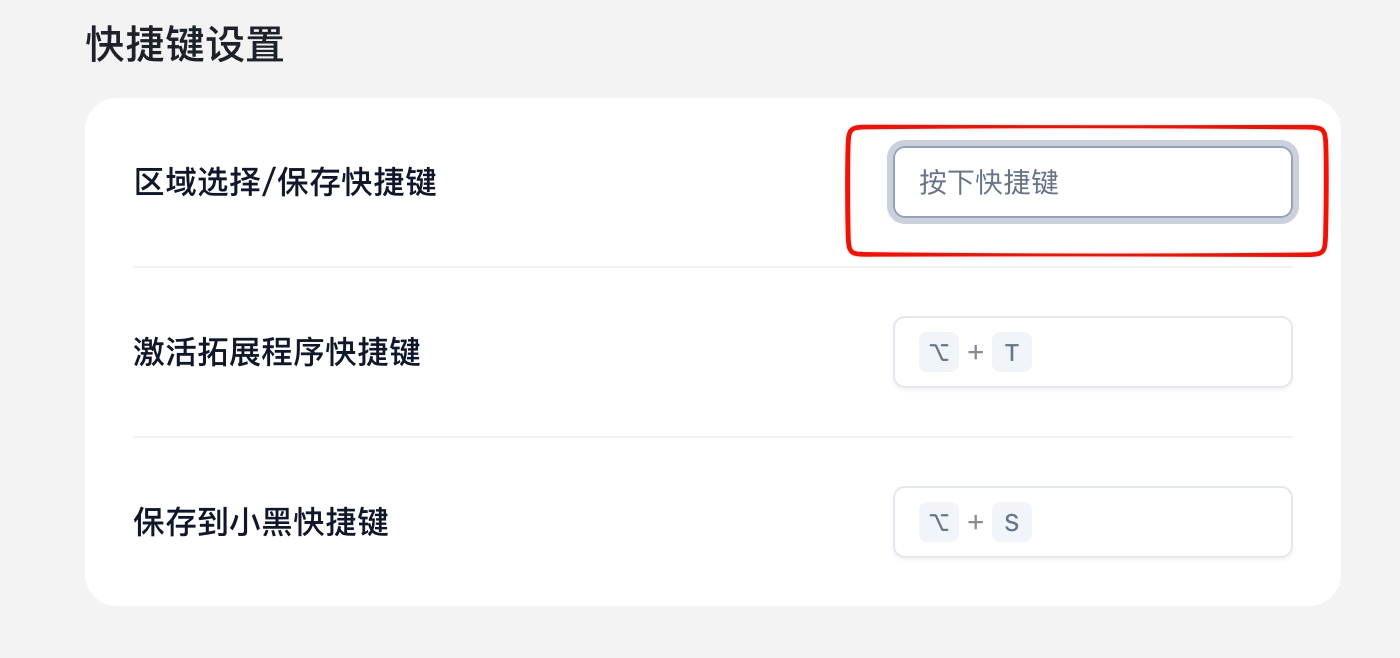
In the extension's Settings page, click on the shortcut you want to modify, then press the new shortcut key you want to set
Supported Browsers
- Chrome
- Edge
- Firefox
- Quark
- 360 Browser
- Mac only supports 360 Speed Browser Pro
- QQ Browser
- Mac does not support QQ Browser Lite version
Safari Browser Authorization
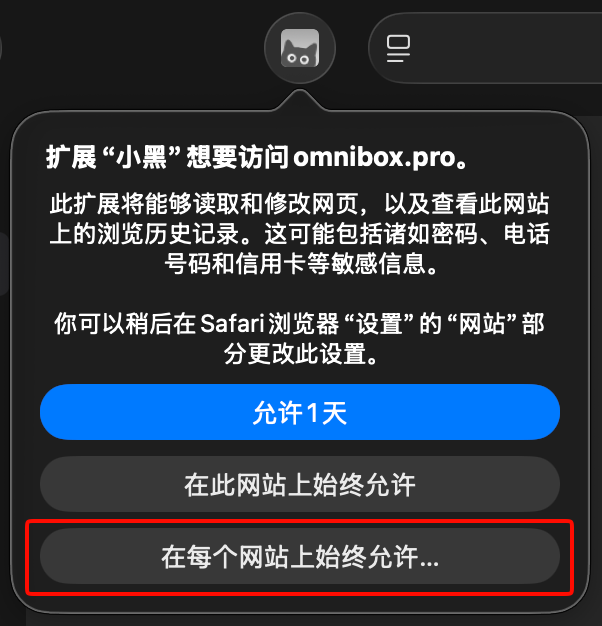
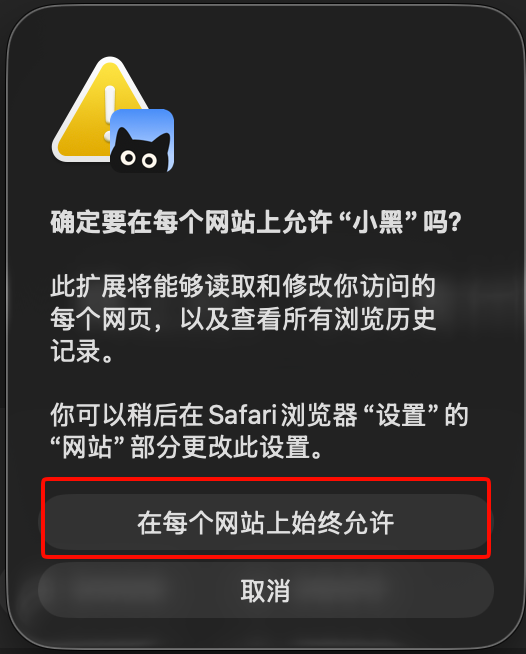
In Safari browser, after installing the extension for the first time, please click the OmniBox icon and select Always Allow on Every Website.
Related Questions
Why doesn't clicking the OmniBox extension do anything?
It is currently set that omnibox.pro and built-in browser pages cannot be opened.