
Feature Introduction
By installing the OmniBox Mobile APP, you can easily save content, read, ask AI questions, manage knowledge base content, view usage, receive reply notifications from the WeChat Collection Assistant and the OmniBox Community, and use the system share sheet extension and clipboard link saving.
Knowledge Base Management
Browse Content
On the OmniBox App homepage, resources are displayed as a tree list, making it easier to browse by folder hierarchy and locate content. Tap a file or note to view its details; tap a folder to open its resource list.
The Mobile APP supports file upload and RSS Folder entries, so you can keep adding content to your knowledge base from your phone. RSS Folders show a loading state while syncing so they do not look empty. Basic namespaces have a plan limit for creating RSS Folders. When the limit is reached, OmniBox shows an upgrade prompt.
When selecting where to save content, the Add to picker uses a tree list, making it easier to locate folders by hierarchy.
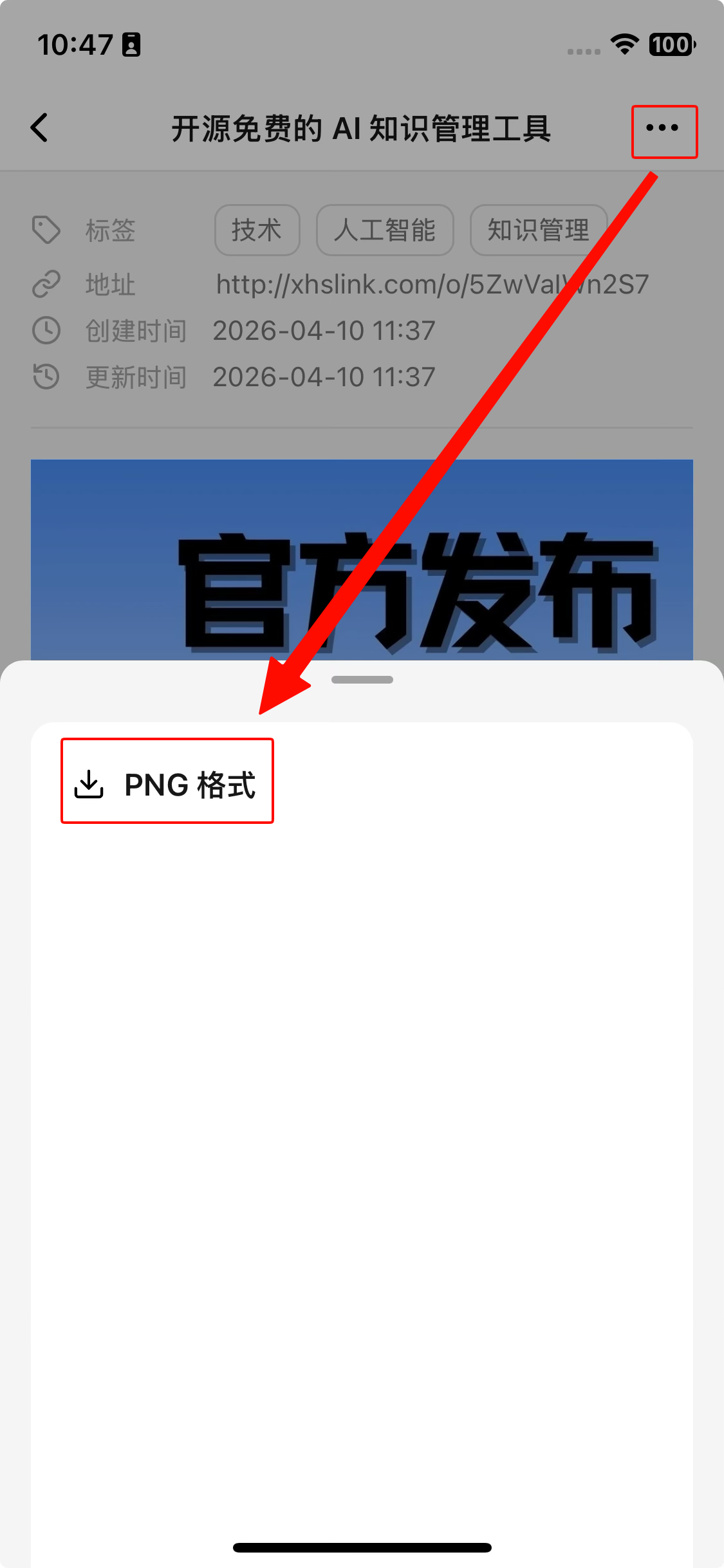
On the resource detail page, tap ··· in the top right and choose PNG format to export the current content as a PNG image and save it to your phone photo library. The system may ask for photo library permission the first time you use this.
File resources can be edited in the Mobile APP. Open the file detail page, enter edit mode, make changes, and save. Resource detail pages also support renaming resources; tap the file name on a file detail page to download the current file.
Images on resource detail pages can be tapped to enlarge, making it easier to view image details.
Resource Actions
In the resource list, long press a resource item to open the system menu, or enter batch operation mode to organize multiple resources.
The resource toolbar includes a Refresh button for manually refreshing the current resource list.
Resource lists support manual sorting and drag-and-drop reordering.
Supported actions include:
Create Folder: Create a new folder in the knowledge base for organizing content.Move to Trash: Long press a resource item and move it to trash from the system menu.Add to chat box: Long press a resource item and add it to the AI chat box.Tags: Add, edit, or update resource tags in resource details.Share: Long press a resource item and choose share from the system menu to share the resource with other people. The top-right action menu on resource detail pages also supports sharing. When sharing folders,Share current file onlyis disabled. In share settings,AI Q&AsupportsChat Onlymode, which shows only the AI conversation without resource content.Batch Move: Select multiple resources and move them to a target folder at once.Create folder with selected resources: Select multiple resources, create a new folder, and move the selected resources into it.
When creating a folder with selected resources, Smart Folders are disabled and shown with an unsupported-action prompt.
Search Resources
On the OmniBox Mobile APP homepage, tap the search icon at the top to open the search page.
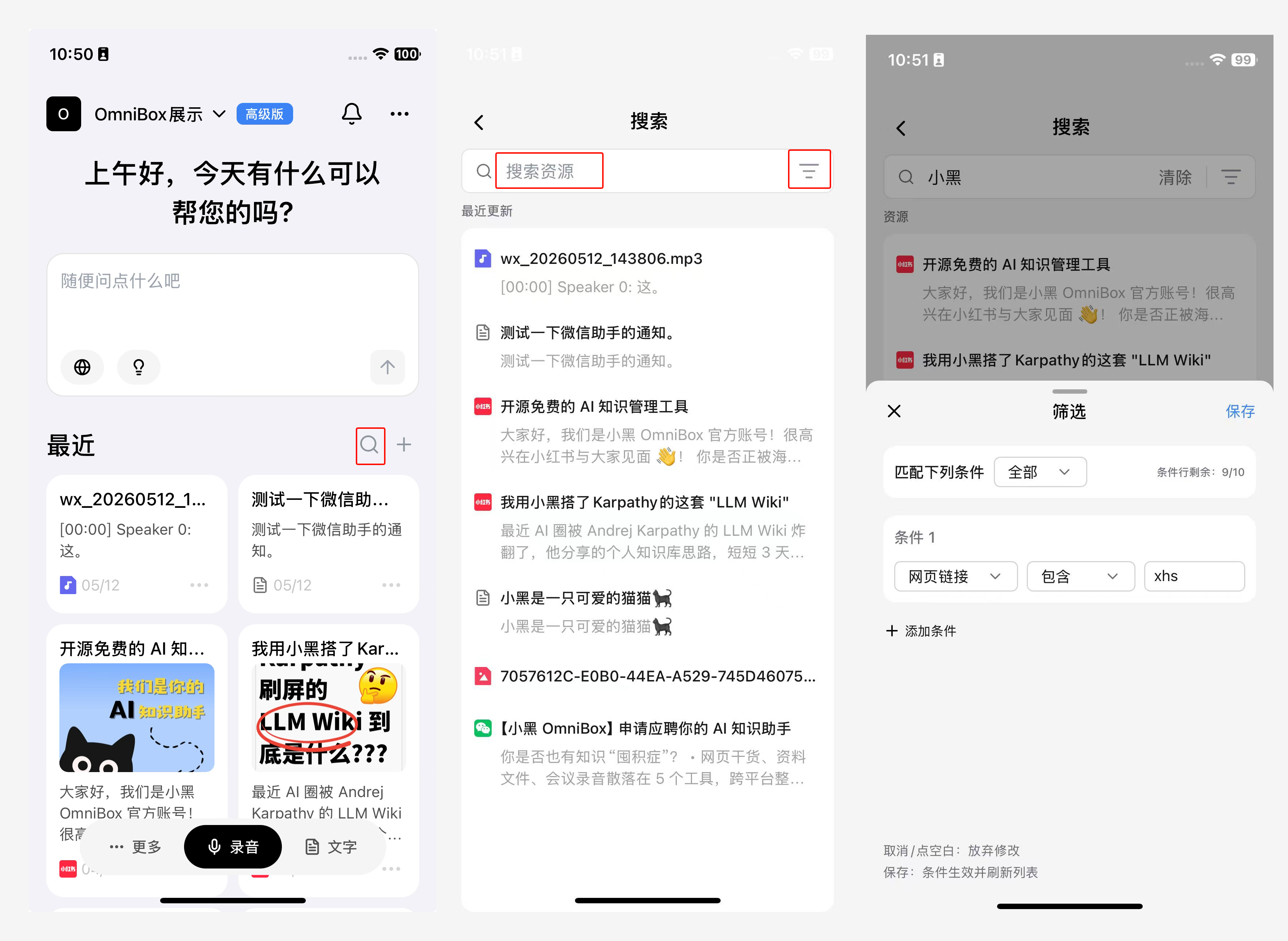
You can enter a title, keyword, or natural-language description to search resources, or narrow the scope with filters. When no query or filter is set, the page shows Recently Updated, making it easy to return to content you just uploaded, edited, or saved.
Mobile APP search supports filtering resources by:
TitleTagsWeb linkFile nameContentCreated timeUpdated time
Tap a search result to open it. Files open in the detail page, while folders and Smart Folders open their resource lists. When searching resource content, matching keywords are highlighted in results and detail pages so you can locate the context quickly.
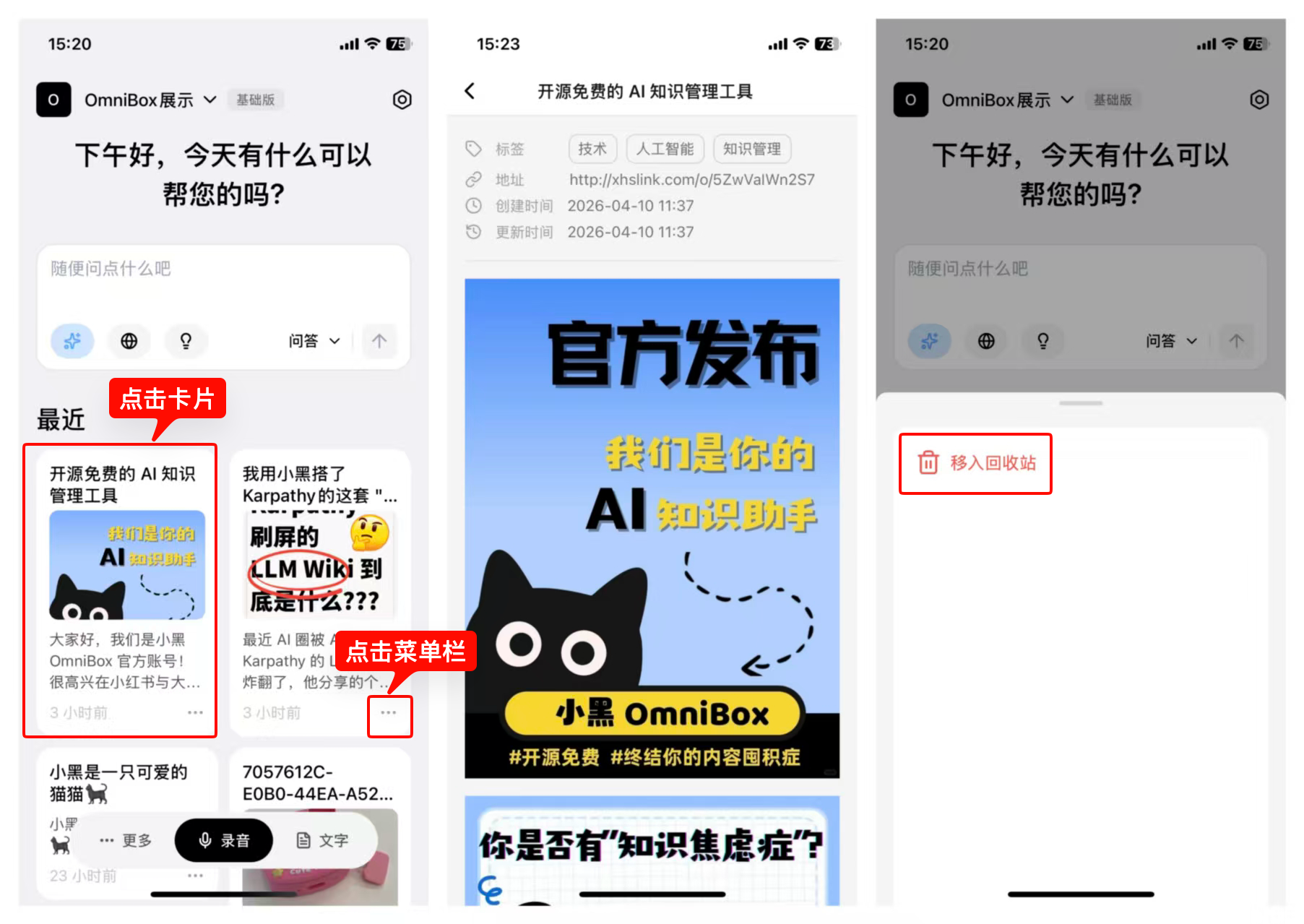
Move to Trash
Long press a resource item and select Move to Trash from the system menu.
Smart Folders
In the OmniBox App, you can create and view Smart Folders. Smart Folders automatically collect resources that match filter conditions without moving or copying the original files.
For creating Smart Folders, filter conditions, and viewing or managing Smart Folders, see Smart Folders.
AI Chat
You can also use OmniBox AI in the Mobile APP for chat, search, and knowledge base Q&A.
- View AI conversation history and manage existing conversations.
- Collapse model intermediate execution steps, making long answers easier to read on mobile.
Web SearchandReasoningin the chat box include text descriptions, matching the web experience.- Tap
Select resourcesin the chat input box, search and select resources from a dropdown list, and add them to the chat box. - After resources are added to the chat box from the resource long-press system menu or batch actions, resource names are sent as clickable links so you can return to the detail page.
- RSS subscription content can be added to the chat box for AI Q&A grounded in that content.
- Recommended questions can be generated from the currently visible resources. After you tap a recommended question, it shows a loading state.
- When using Agent 2.1, you can ask it to manage Smart Folders, such as creating, viewing, editing, or deleting Smart Folders.
- Resource links in answers can jump to the corresponding resource detail page. Smart Folder links can jump to the Smart Folder detail page.
- Resource citations in Q&A can jump to the corresponding line.
- Resource tool call parameters and resource links in answers are aligned with the web experience, making it easier to confirm which materials Agent 2.1 used.
- When context compression happens in an AI conversation, the App shows a prompt so you can understand the long-conversation state.
- While an AI reply is being generated, you can tap
Stopto interrupt the current generation. Sending new messages is temporarily disabled during generation to avoid confusing answer states caused by consecutive sends. - In long conversations, use
Back to bottomto return to the latest answer quickly. - Search chat history. After opening an existing conversation, use the top
Sharebutton or long-press a message and chooseShareto enter selection mode, then choose complete Q&A groups and share to WeChat, Moments, or copy the link. - If Agent 2.1 needs approval, the Mobile APP adapts the approval mode buttons for mobile display.
Bind WeChat Collection Assistant
The Mobile APP supports binding WeChat Collection Assistant. Open the App and follow the prompts from the Assistants settings or the WeChat Collection Assistant binding entry. The Assistants settings show whether each assistant is bound or unbound.
After binding, you can continue sending text, voice messages, images, files, or web links to WeChat Collection Assistant in WeChat, and the content will be saved to the corresponding OmniBox namespace.
Bottom Navigation Bar
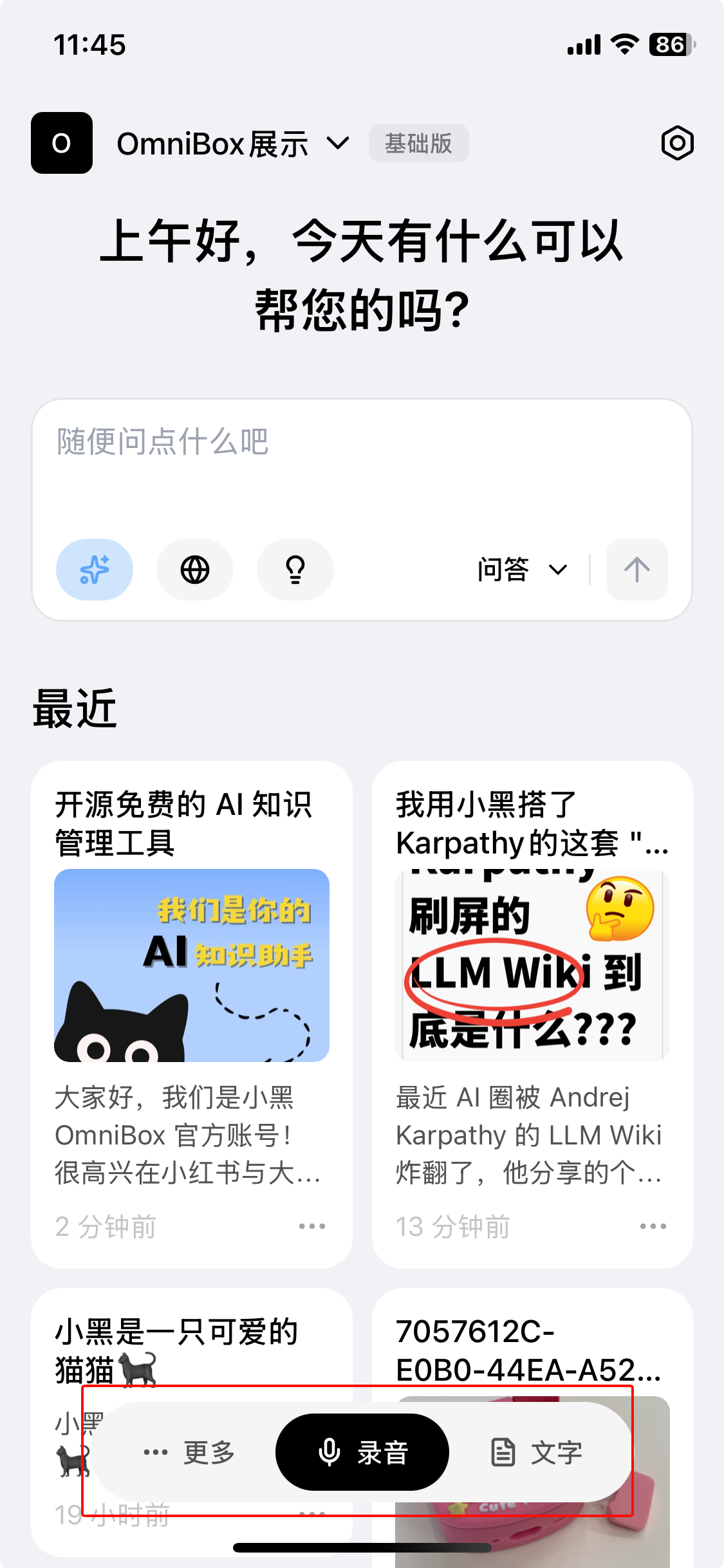
Open the OmniBox Mobile APP and enter the homepage to see the Bottom Navigation Bar, which includes Audio, Text, and More (Photo, Link) for quick recording.
Audio Recording
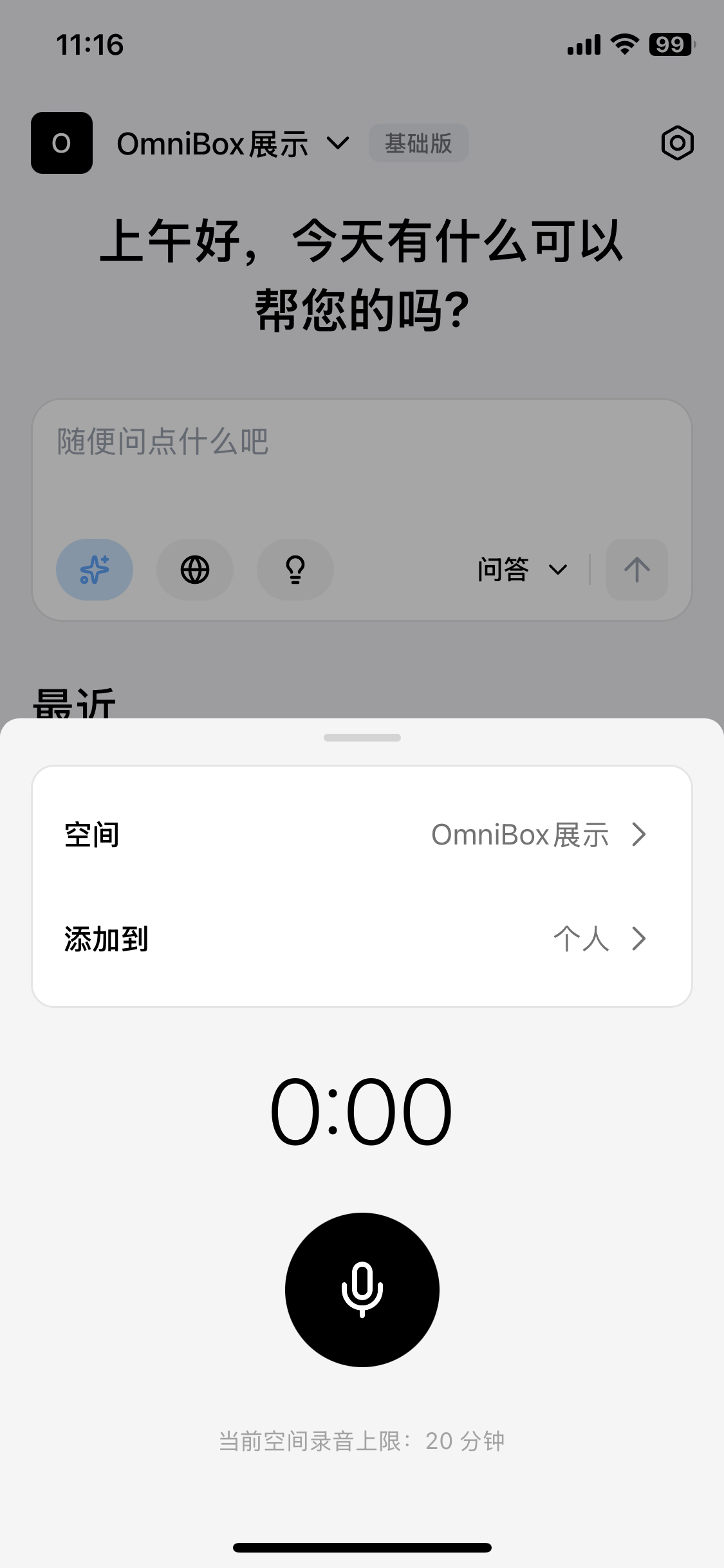
- Basic namespace recording limit: 20 minutes
- Pro namespace recording limit: 120 minutes
- If the remaining parsing quota is less than the single parsing limit, the limit will be the remaining quota
In the Bottom Navigation Bar, tap Audio, then tap the microphone icon to start recording. After you tap Done, the App asks you to confirm whether to save the recording.
In the recording popup, you can select the namespace and folder to save to.
Text
In the Bottom Navigation Bar, tap Text to open the plain text editor. After editing, tap Done in the top right to save.
Tap the file/folder name at the top of the plain text editor to select the namespace and folder in the popup.
Saved text note detail pages show a title, and the top-left button returns to the previous page.

More
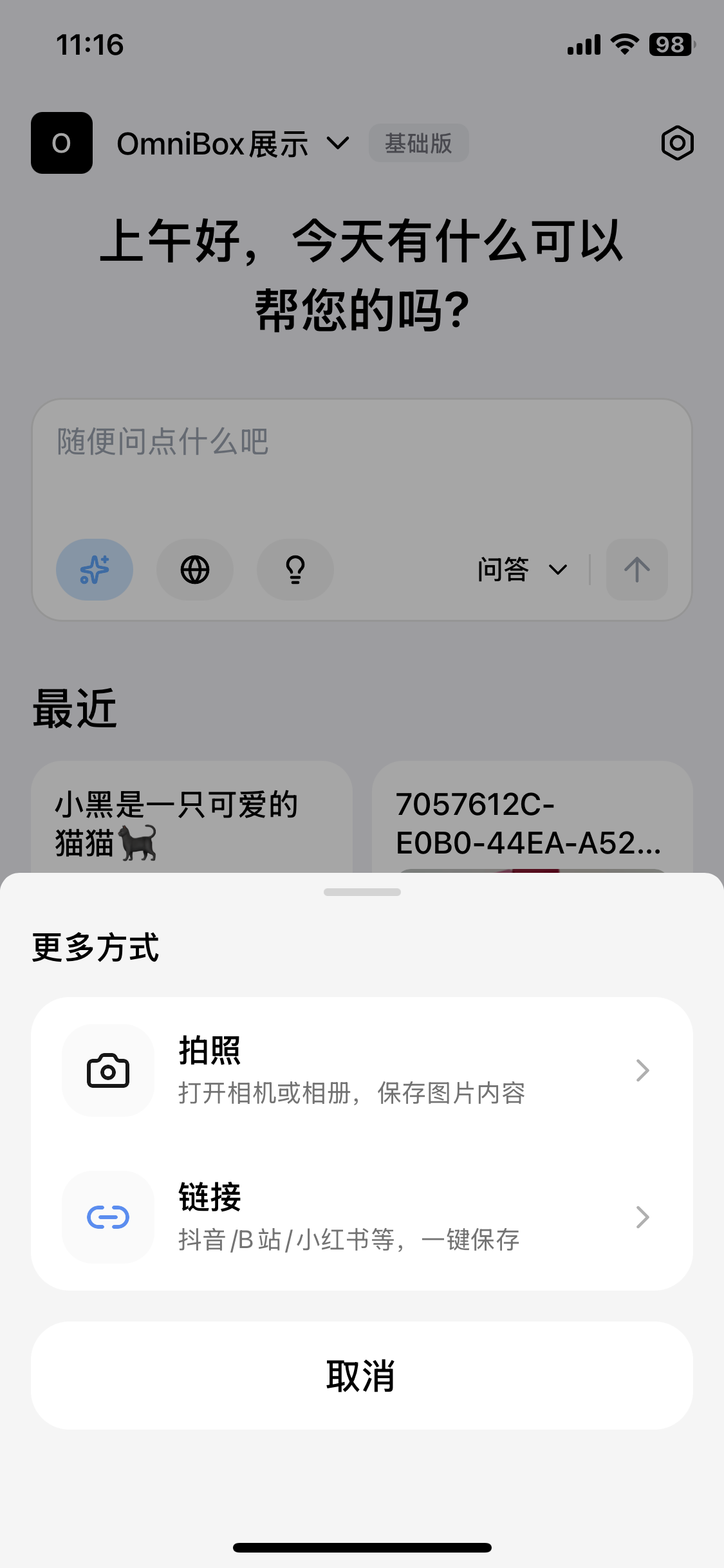
In the Bottom Navigation Bar, tap More to open the more options popup, where you can choose Photo or Link.
Photo
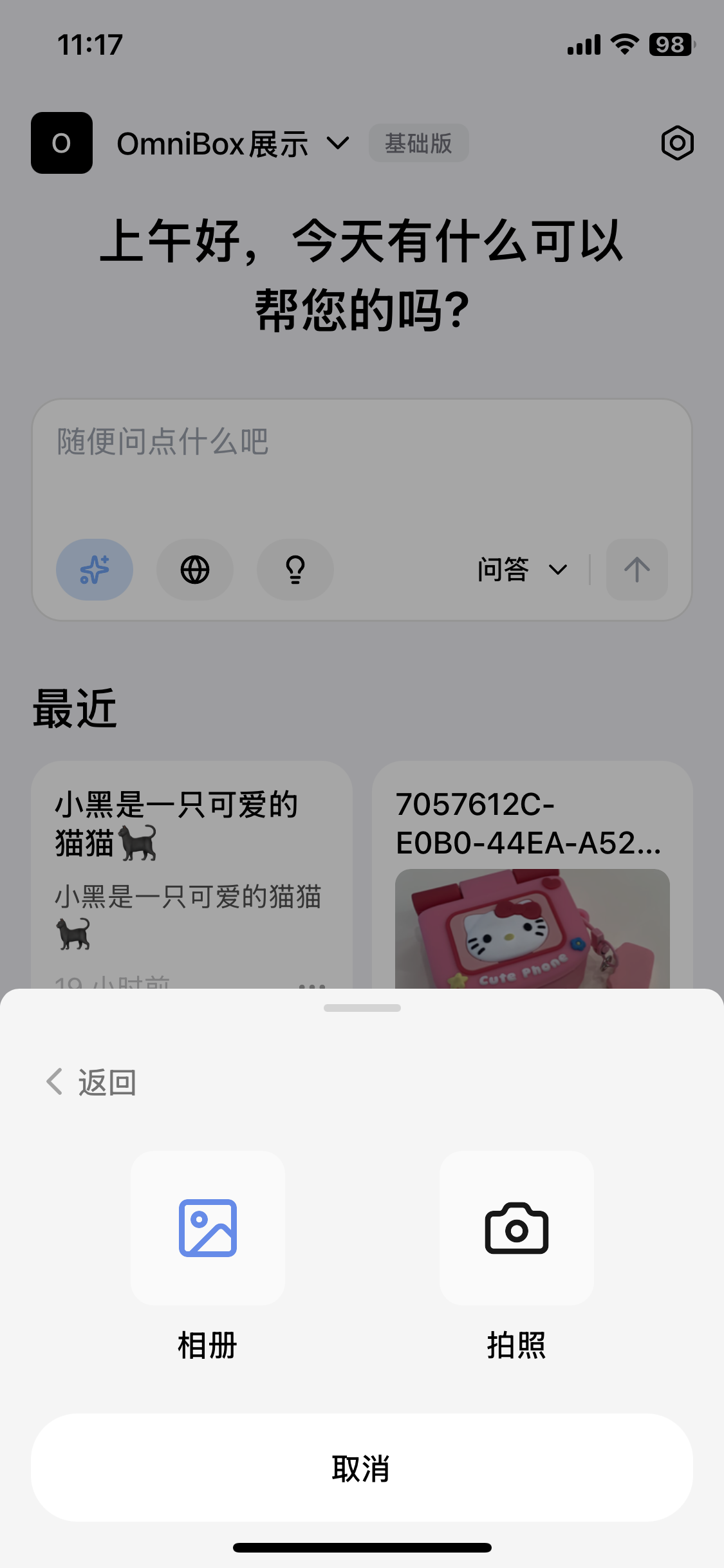
In the More options popup, tap Photo to open the photo popup, where you can choose Camera or Gallery. After taking a photo / selecting an image, you can choose the namespace and folder in the popup, then tap Save to OmniBox to save.
Link
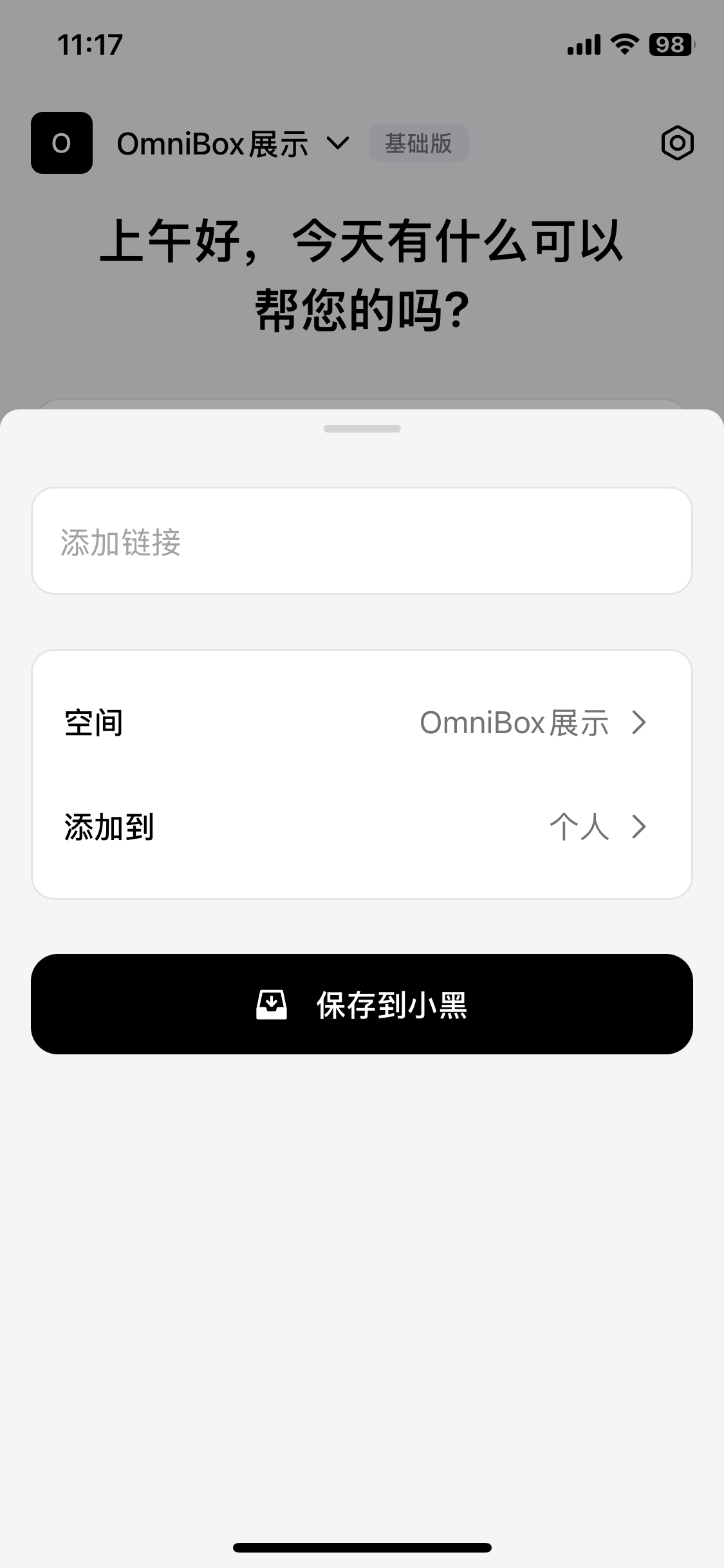
In the More options popup, tap Link to open the paste link popup, where you can enter / paste the link to save, select the namespace and folder, then tap Save to OmniBox to save.
Quick Menu
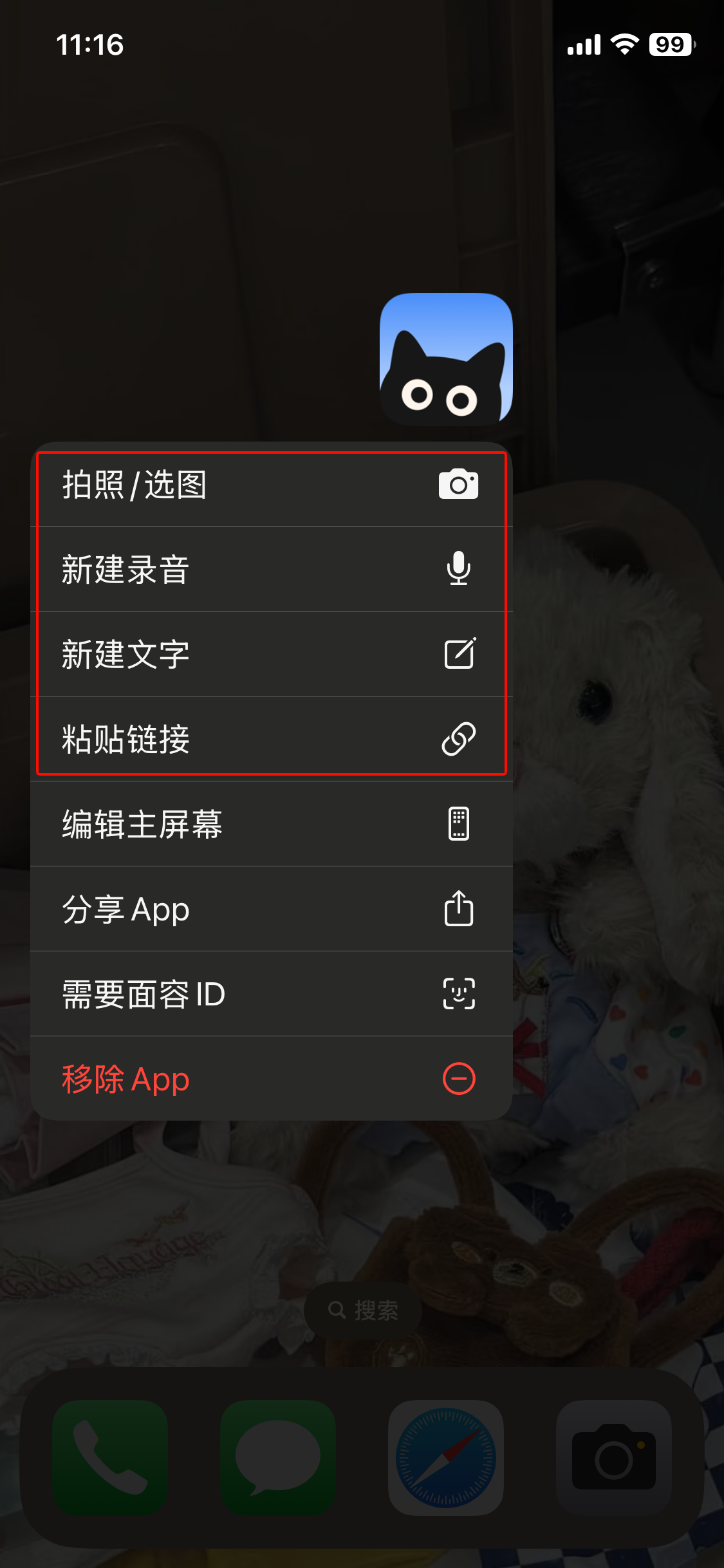
Long press the OmniBox app icon on your phone to bring up the quick menu. Tap a tool to quickly open that feature.
Currently includes four features: New Audio, New Text, Photo / Select Image, Paste Link.
Settings
In the Mobile APP Settings, you can view information related to the current namespace and account.
Usageshows the current namespace usage, validity period, and expansion entry. Namespace owners can expand capacity from there.Login Methodsshows the currently bound login account.- App version update prompts show the latest version and help you open the app store or download the installation package to update. When a new version is available, the App shows an update prompt dialog.
- Android supports using the system swipe-back gesture to return to the desktop.
Share to OmniBox
Through the Share Sheet Extension and Read Clipboard, you can share content from other apps to OmniBox for saving.
Share Sheet Extension
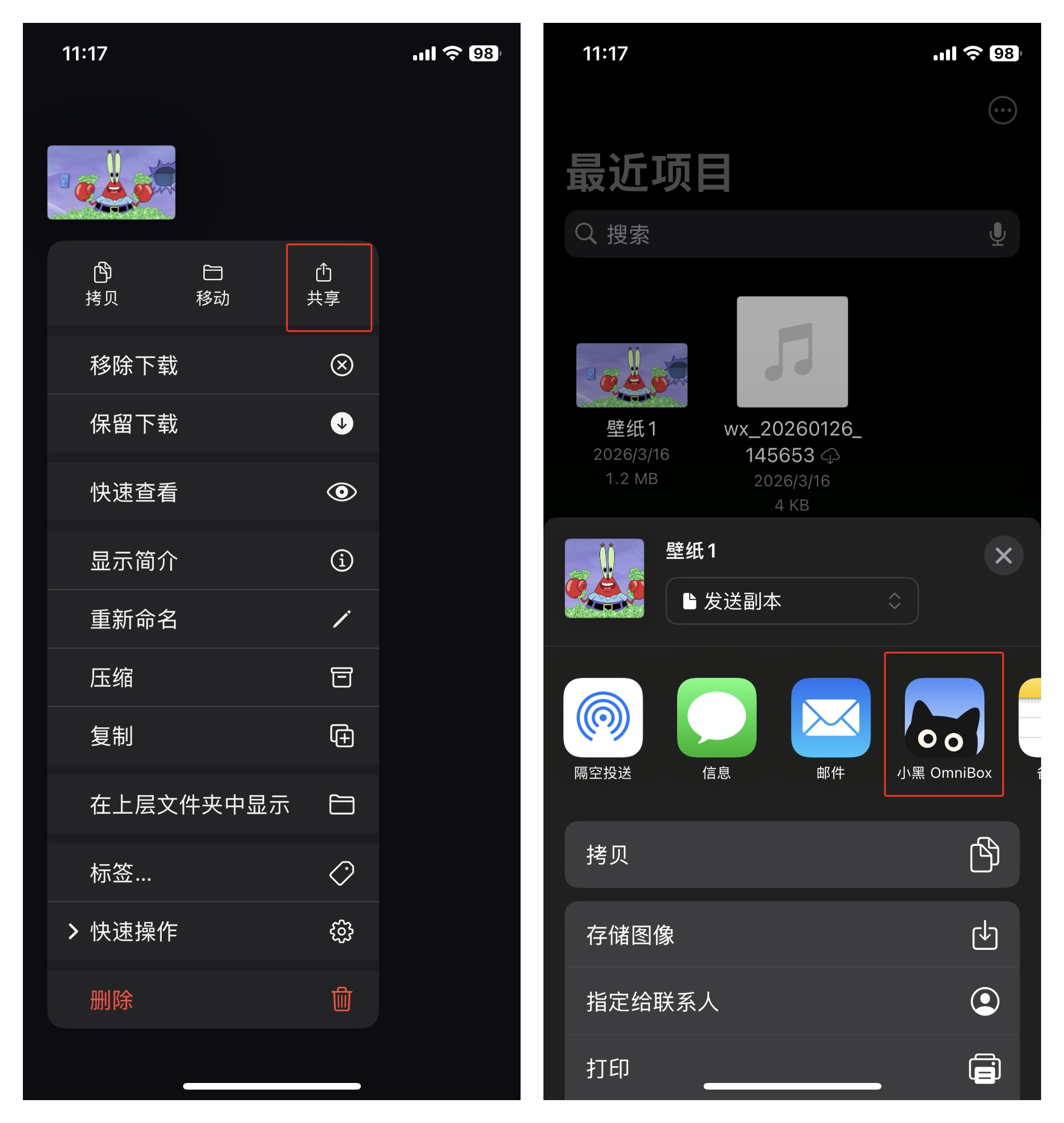
In other apps, use the system share sheet to share content to OmniBox. In the popup, select the namespace and folder, then tap Save to OmniBox to save. For convenience, please add OmniBox to your share sheet beforehand.
The share sheet is suitable for saving web links, files, and public content from apps such as X (Twitter), Reddit, Instagram, Zhihu, and Xiaohongshu. Xiaoyuzhou podcast website content can currently be saved and parsed via links or shared cards. For card-style content, share directly from the original app's content detail page; cards forwarded from chat windows may not be parsed completely.
Read Clipboard
This feature only recognizes
linksortext containing links(i.e., share links copied directly from other apps). Other clipboard content (such as plain text, images) will be automatically filtered.
iPhone:
After copying a
linkortext containing a link, open the OmniBox Mobile APP and selectAllow Pasteto bring up the paste link popup for saving.After a clipboard link is saved successfully, the clipboard is automatically cleared.
You can change the
Paste from Other Appspermission in Settings > Apps > OmniBox.
Android:
After copying a
linkortext containing a link, open the OmniBox Mobile APP and the clipboard content will be automatically recognized, bringing up the paste link popup for saving.After a clipboard link is saved successfully, the clipboard is automatically cleared.
You can change the
Read Clipboardpermission in Settings > App Settings > OmniBox > Permissions.
Notifications
Notification permission settings:
iPhone: You can change notification permissions in Settings > Apps > OmniBox.
Android: You can change notification permissions in Settings > App Settings > OmniBox > Notifications. Some Android phones require manually enabling
Banner notificationsandLock screen notifications.
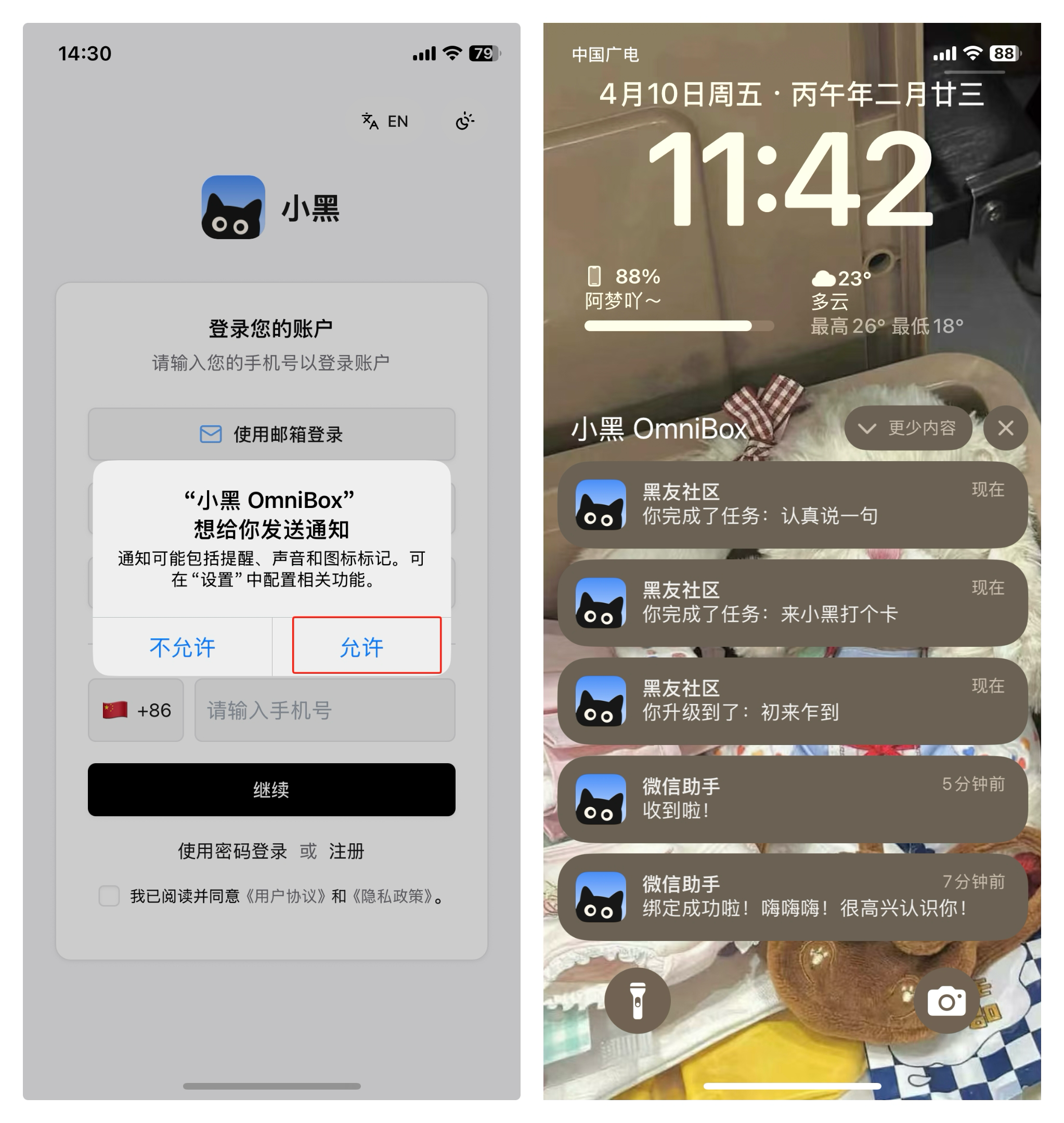
After installing the OmniBox Mobile APP, open it and select Allow Notifications to receive reply notifications from the WeChat Collection Assistant (requires binding WeChat Collection Assistant), community notifications (requires registering with the OmniBox Community), System Notifications, Marketing Campaigns, Changelogs, and Surveys.
You can also open the Notification Center from the notification entry at the top of the App homepage to view unread messages, notification details, and previous notifications in one place.