

Sharing & Invitations
Share Documents
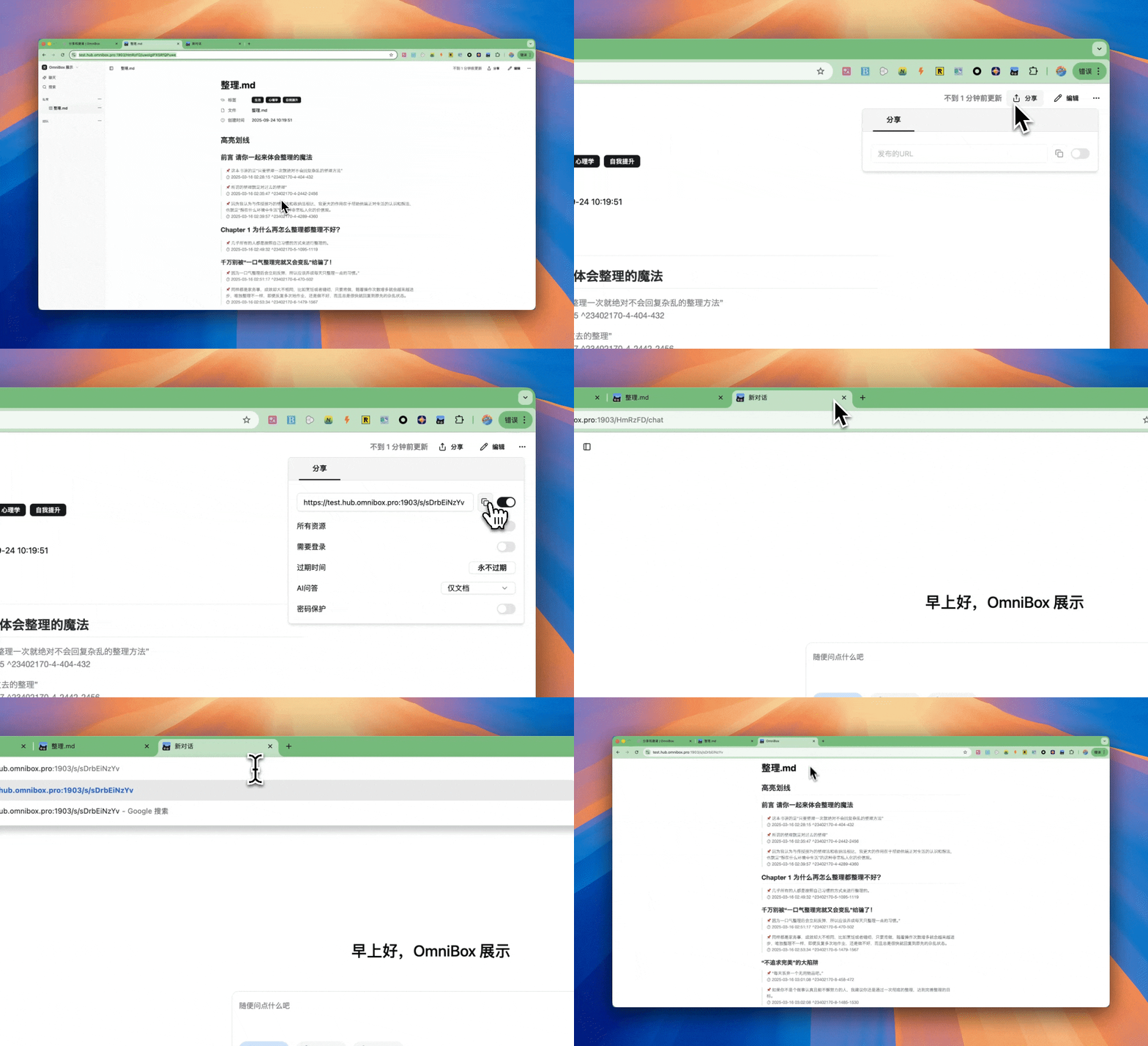
Select the document you want to share > Share > Turn on sharing > Copy the link to share with other users
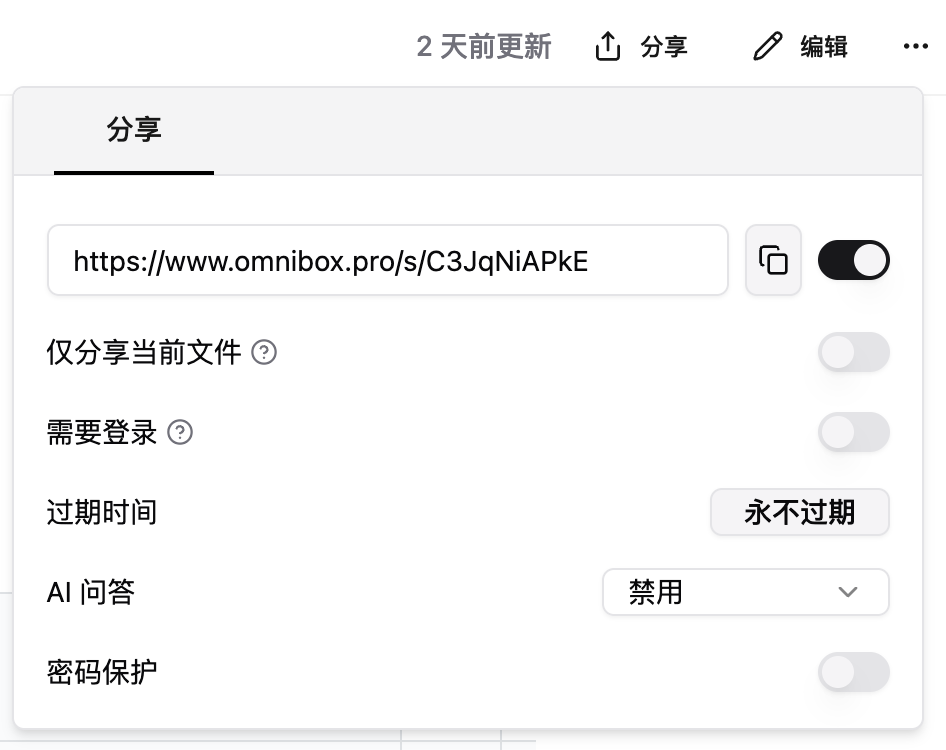
Option Descriptions
| Option | Description |
|---|---|
| Share current file only | Available when sharing a single file. When enabled, only the current file is shared; when disabled, all sub-files are also shared. This option is not available when sharing folders, including regular folders, Smart Folders, and RSS Folders |
| Require login | When enabled, users must log in to view this shared resource. When disabled, anyone with the link can access |
| Expiration time | Set the expiration time for the share |
| AI Q&A | Choose Disabled, Chat Only, or Enabled. Enabled lets users browse resource content and ask questions; Chat Only shows only the AI conversation without resource content; Disabled lets users browse files only |
| Password protection | When enabled, users must enter a password to view this shared resource. When disabled, anyone with the link can access |
When sharing Smart Folders or RSS Folders, sorting actions are disabled on the share page.
Invite Others
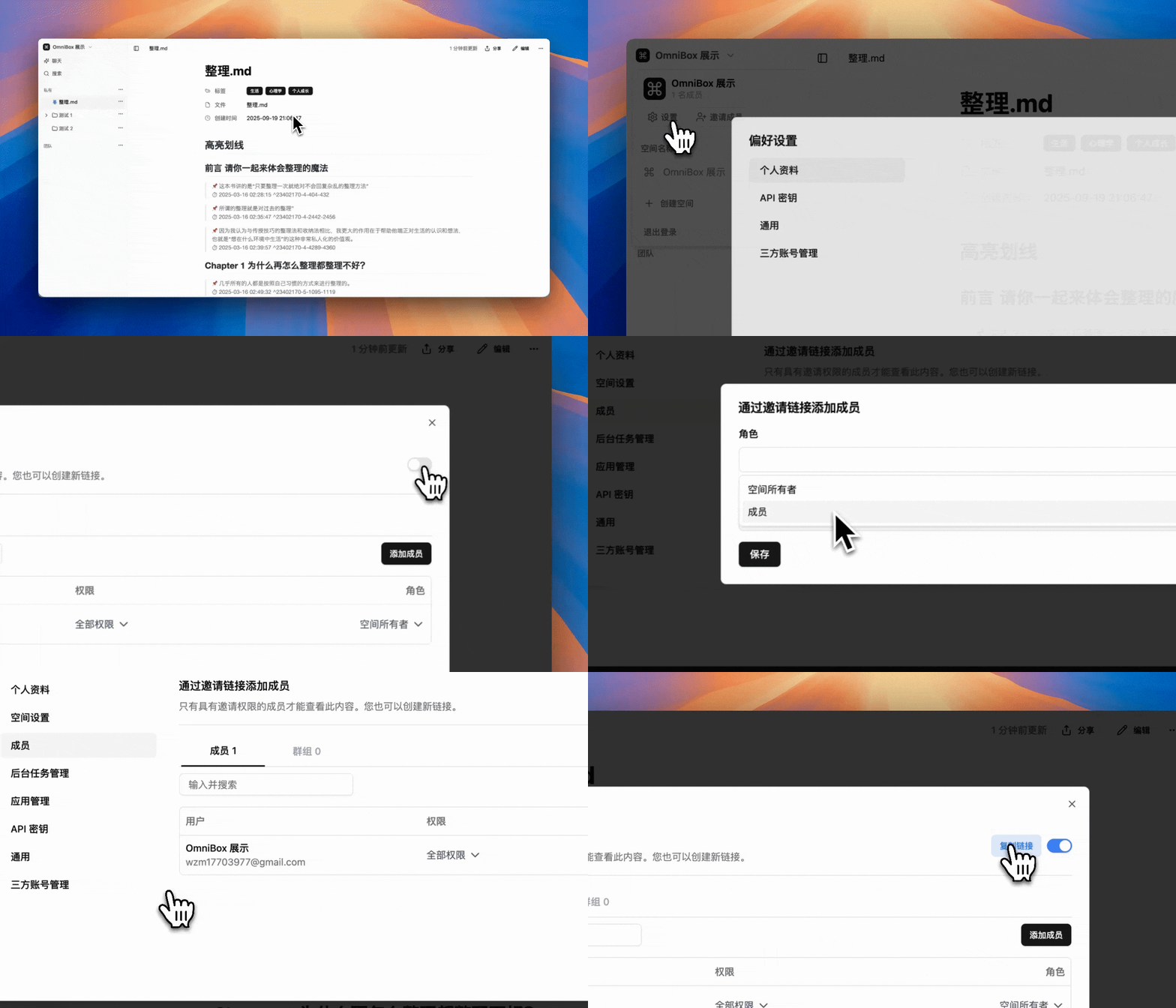
Link Invitation
Through OmniBox Settings > Members > Add members via invitation link, turn on the link invitation switch > Set permissions > Copy link.
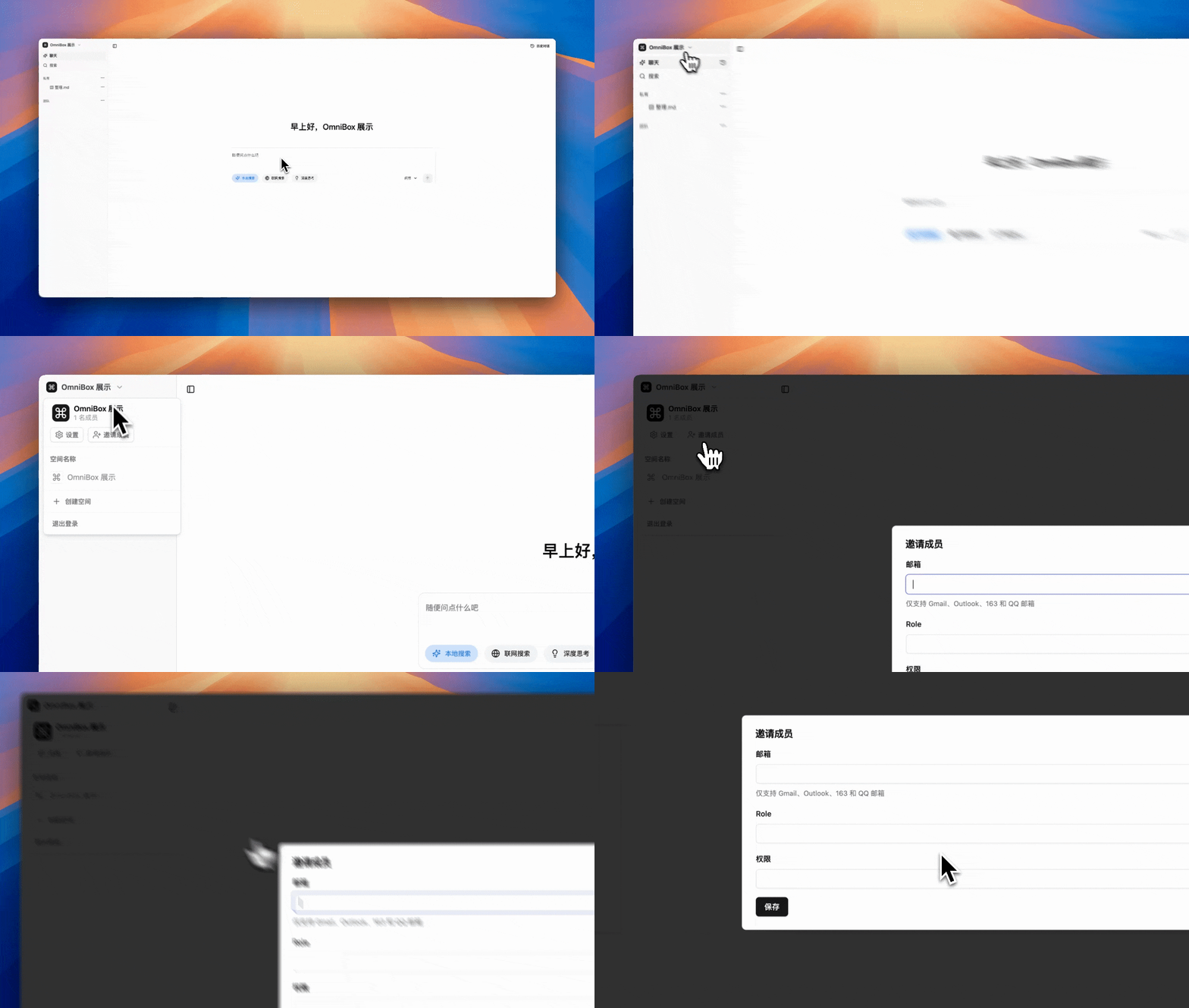
Email Invitation
Through OmniBox Namespace Info > Invite Members > Fill in invitation information to add members.
For unregistered emails, they will automatically join the namespace after completing registration.
View Members
Members in a team namespace can view the member list in Settings > Members. The current logged-in account shows (You) next to its username, making it easier to confirm your identity in the namespace.